 Astrolinks


Short answer
You know remote employees are working when the agreed work shows up: tasks finished on time, at the quality you expect, plus a short daily update on what's done, what's next and what's blocked. Set clear outcomes per role, spot-check the work weekly, and talk early when something slips. Screenshots show a mouse moved, not that work got done.
Astrolinks gives each person a daily report written from their own private log. No screenshots. Get it free →
Every owner who hires remotely asks this at some point, usually at 11 PM while looking at a task that should have been done yesterday: is this person actually working?
It's a fair question. You're paying for time and results you can't see. But the usual answer, installing software that takes screenshots and counts mouse clicks, tends to make things worse. It measures the wrong thing, it's easy to fake, and it pushes your best people out.
This guide shows how to know if remote employees are working in a way that actually holds up: what to look at, a simple check you can start this week, the warning signs that matter, and what to do when something's off. It's written for agency owners and small business owners with remote staff, including offshore teams in places like the Philippines.
What does "working" actually mean for a remote employee?
Before you can check whether someone is working, you have to decide what working looks like for their role. For a remote employee it isn't "online from 9 to 5". It's this:
- The agreed work gets done. Tasks are finished, deadlines are met, clients get what they were promised.
- The work is good enough. It meets the standard you set, without you redoing it.
- You hear about problems early. If something is stuck, you find out the same day, not the day it was due.
If all three are true, the person is working, whatever their mouse did. If all three aren't, a green "active" dot won't fix it.
That shift, from presence to outcomes, is the whole game. Our guide to measuring remote employee productivity goes deeper on choosing outcomes per role.
Why screenshots and activity scores don't answer the question
Monitoring tools promise to show you whether people are working. What they actually show is narrower:
- Activity levels count keyboard and mouse input. Reading a brief, thinking through a design, or being on a client call all score low. A person scrolling social media scores high.
- Screenshots show one moment every few minutes. They don't show whether the work in them was good, or whether it was the right work.
- App and website tracking tells you someone had a tool open, not what they did in it.
These numbers are easy to game. Mouse jigglers cost a few dollars and keep an "active" status green all day. We cover how they work, and why people use them, in our post on mouse jigglers.
There's a cost on the other side too. Good people, the ones you most want to keep, often take heavy monitoring as a sign you don't trust them. Some leave. The ones who stay learn to perform activity instead of doing work. If you want the full picture of what these tools record, see bossware: what it is and what it sees.
Monitoring has a place in some settings, such as regulated industries or company-owned devices with security needs. But as a way to know whether someone did their job today, it's a weak signal dressed up as a strong one.
If you're looking for other ways to get that signal, our guide to employee monitoring software alternatives compares seven options, from weekly goals to written daily reports.
A 5-step check you can start this week
Here's a simple system that tells you, reliably, whether each remote employee is working. It takes about 15 minutes a day for a team of five.
1. Write down two or three outcomes per role
For each person, write what a good week looks like in results, not hours. (If you also pay by the hour, see how to track remote employees' time.) Some examples:
| Role | Outcomes to check |
|---|---|
| Social media manager | Posts scheduled for the next 7 days; replies to comments within 24 hours; monthly report sent on time |
| Designer | Drafts delivered by the agreed date; revision rounds per project; client approval rate |
| Customer support VA | Tickets resolved; first reply time; customer satisfaction or complaints |
| SEO specialist | Pages optimized or published; audit items closed; ranking report on time |
| Bookkeeper | Accounts reconciled by the 5th; invoices sent on schedule; errors found in review |
Share this with the person. Most people like knowing exactly what you'll judge them on.
2. Ask for a short written update at the end of each day
This is the single most useful habit for remote teams. At the end of their shift, each person sends three short lists:
- Done: what they finished today, with links where possible
- Next: what they'll work on tomorrow
- Blocked: anything stuck, and what they need
It takes them five minutes. It takes you one minute to read. Over a week you get a clear record of what each person did, in their own words. Our guide on how to write an end-of-day report has examples you can share with your team, and this sample report shows what a finished one can look like.
3. Spot-check the actual work
The update tells you what someone says they did. Once or twice a week, click a few of the links. Open the design file, read the blog draft, look at the scheduled posts, check the closed tickets.
You're not inspecting everything. You're checking that the update and the work match. If they do, week after week, you can trust the updates. If they don't, you've found your answer faster than any screenshot would have shown it.
4. Answer blockers fast
A remote employee who's blocked and waiting isn't "not working". They're stuck because of you or the client. If someone flags a blocker in their update, answer it before their next shift starts. Many "is this person working?" worries turn out to be "this person has been waiting two days for a login."
5. Hold a weekly one-on-one
Fifteen minutes a week, on video. Go through the outcomes from step 1. Ask what's slowing them down. This is where you see the trend: someone who's improving, someone who's overloaded, someone who's drifting.

What are the warning signs that a remote employee isn't working?
No single sign proves anything. People have bad weeks, sick kids and power cuts. But if several of these show up together for two weeks or more, it's time to talk:
- Deadlines slip without warning. The work is late and you didn't hear it was at risk.
- Daily updates go vague or repeat. "Worked on the website" three days in a row, with nothing to link to.
- The update doesn't match the work. The update says "finished the draft", the draft is half done.
- Replies are slow during agreed overlap hours. Not occasionally, but as a pattern.
- They avoid calls or cameras for one-on-ones they used to attend.
- Quality drops. More revisions, more client complaints, more mistakes you have to fix.
Also watch for the opposite problem: the person sending updates at 2 AM every night and never missing anything. That can be overwork, and burnout leads to the same missed deadlines later.
What should you do when you think someone isn't working?
Talk to them before you assume the worst. A short, direct conversation sorts out most cases:
- Name the specific thing. "The landing page was due Tuesday and I didn't hear it was late. The last three updates say 'working on landing page'. What's going on?"
- Listen. Often you'll hear about a second job, a family problem, unclear instructions, a tool that doesn't work, or too much on their plate. Each has a fix.
- Agree on a clear next step and a date. "Can you send me the draft by Thursday at noon your time, with an update tonight on what's left?"
- Follow up on the date. If it happens, great. If it doesn't, you now have a clear, fair record to act on.
If someone is genuinely not working, for example taking your pay while doing another full-time job in the same hours, the outcomes will show it within a couple of weeks. You don't need surveillance to see a pattern of missed results. You need a written record of what was agreed and what came back.
Is it legal to monitor remote employees?
In many countries, employers can monitor company-owned devices and accounts, but the rules vary a lot. Some places require notice or consent, some limit what you can collect, and data protection laws like the GDPR in Europe add duties of their own. Contractors working on their own computers, which is common for offshore VAs, are a different case again.
If you do monitor, check the law where each person lives, tell them in writing exactly what you collect, and collect as little as you need. This isn't legal advice; talk to a lawyer if you're unsure. Our employee monitoring policy template is a good starting point for writing it down.
For most agencies and small teams, the system above makes the question moot. You don't need to see the screen when you can see the work.
Where Astrolinks fits
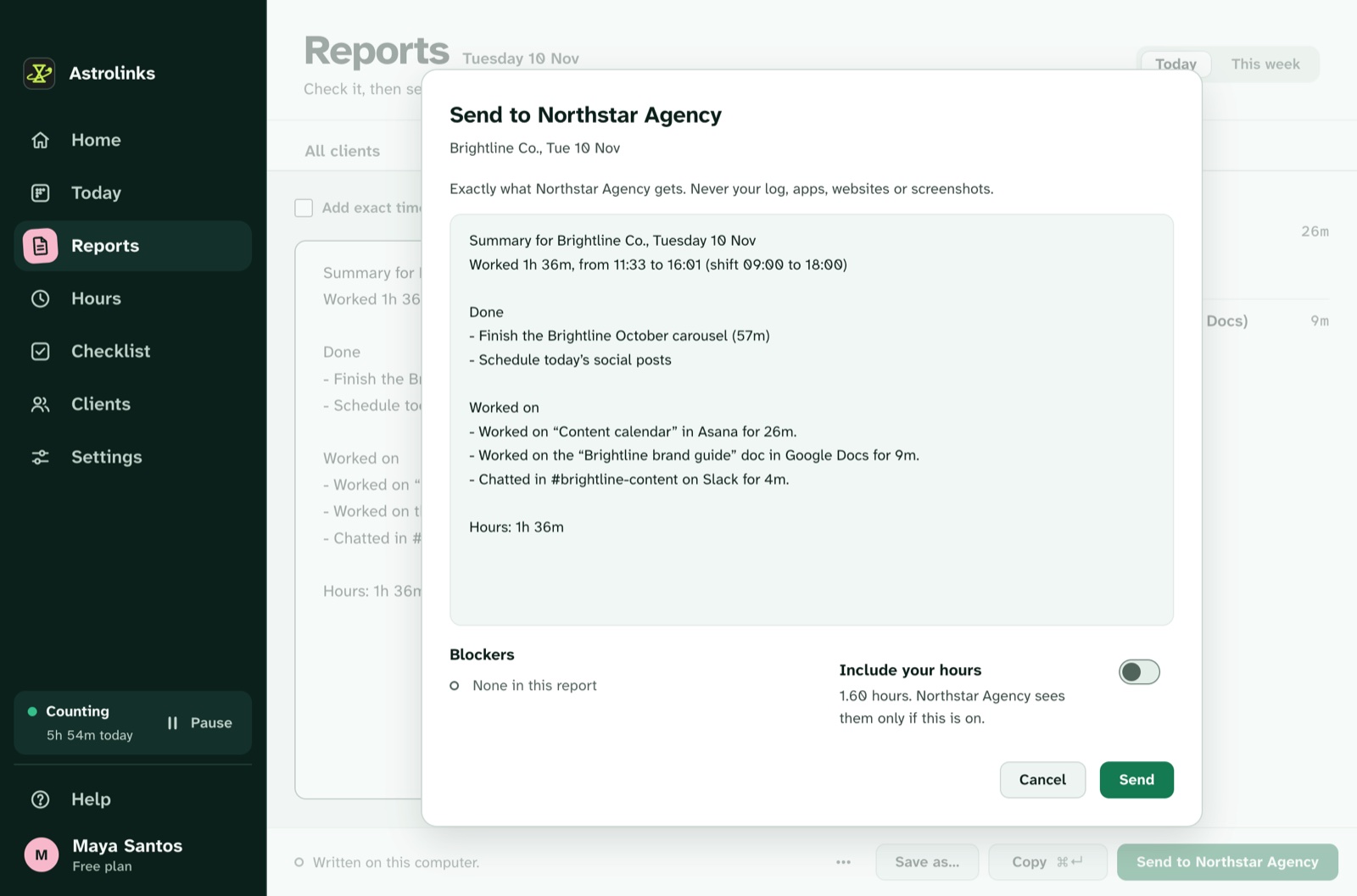
We make Astrolinks, so read this section with that in mind. Astrolinks is a desktop app for Mac and Windows that helps with step 2. It keeps a private log of each person's workday on their own computer, sorted by client. At clock-out it drafts their end-of-day report from that log: what's done, what's next, what's blocked. The person checks it, edits anything, and sends it.
On the Team plan, the reports land in one Team inbox for you, split by client, ready to forward. You see what people choose to send, never their screen or activity. No screenshots and no keystroke logging. Your team gets a report that writes itself instead of a chore, and you get the daily record this guide recommends.
If you run an agency with remote staff, we're running free 14-day pilots for up to 5 people, no card needed. Ask for a pilot here, or read more about Astrolinks for agencies.
If you're weighing a specific tool, see these alternatives to Teramind, ActivTrak and DeskTime that don't rely on screenshots.
The short version
To know if remote employees are working, stop watching activity and start checking outcomes. Write down two or three results per role, ask for a short daily update (done, next, blocked), spot-check the real work each week, answer blockers fast and hold a 15-minute weekly one-on-one. When the work and the updates match, people are working. When they don't, talk early and specifically. It's fairer than surveillance, it's harder to fake, and it keeps the people you most want to keep.