 Astrolinks

Short answer
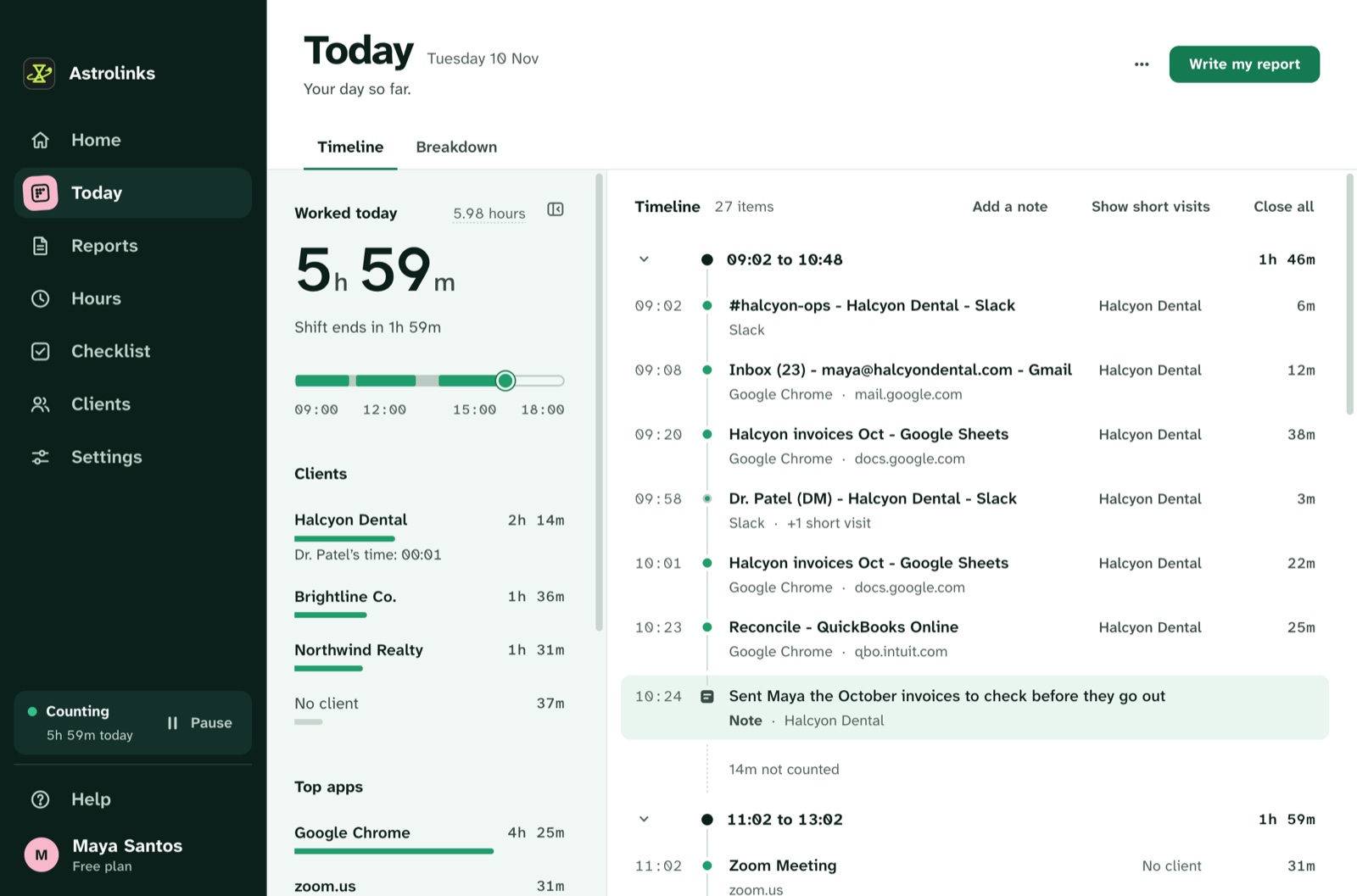
Astrolinks is a time tracking app for Mac that keeps a private log of your workday on your own computer. It lives in the menu bar, notes the app and window in front, sorts the time by client, and writes each client's end-of-day report at clock-out. It runs on Apple silicon and Intel Macs with macOS 13 or later.
Most time trackers for the Mac want one of two things from you. Either you start and stop a timer all day, or you let an agent watch your screen and send it to someone else's server. If you bill clients by the hour, neither is great. Timers get forgotten. Screenshots feel like a camera over your shoulder.
Astrolinks takes a third route. It is a small desktop app that keeps a private log of your workday on your own computer, sorts that time by client, and writes each client's end-of-day report when you clock out. You read the report, fix anything, and send it. It never takes screenshots and never records keystrokes, and nothing leaves your Mac unless you send it.
This page is about the Mac version: what it needs, what macOS asks you to allow, and how it fits into a working day on a MacBook or a desktop Mac.
Which Macs does Astrolinks run on?
Astrolinks runs on Macs with Apple silicon or an Intel chip, with macOS 13 Ventura or later. That covers every MacBook Air, MacBook Pro, iMac, Mac mini, Mac Studio and Mac Pro that can run Ventura or newer.
The download is a disk image (.dmg). Open it, drag Astrolinks to Applications, and open it from there. The Mac build is signed with an Apple Developer ID and notarized by Apple, so macOS opens it without the "can't be checked" warning you get from unsigned apps. You can also check the file yourself: the download page lists its SHA-256 and the Terminal command to compare it.
Once it is open, look for the hourglass in your menu bar. Astrolinks is built as a menu bar app, and it also shows in the Dock unless you turn that off in Settings. The menu bar icon is always there either way.
Does Astrolinks work on Intel Macs?
Yes, from version 0.3.5. The same download runs on Intel and Apple silicon Macs, as long as the Mac has macOS 13 Ventura or later. To check, open the Apple menu and choose About This Mac: the macOS line should say 13 or higher.
What permissions does it ask for on macOS?
Two kinds, and both are there for one reason: to know what you were working on, by name.
- Screen Recording. On a Mac, reading another app's window title needs this permission. That is the only reason Astrolinks asks for it. It never captures your screen, never takes screenshots, and never records video. If you don't allow it, Astrolinks still sees which app is in front, but not the window title.
- Your browsers, one at a time (Automation). To read the address of the page in front, Astrolinks asks each browser through AppleScript, and macOS shows a prompt the first time for each one. This route also means it doesn't need the Accessibility permission. You can turn web addresses off in Settings with Record web addresses, and then a browser is kept by its page title.
On a Mac, web addresses come from Chrome, Edge, Brave, Vivaldi, Chromium, Arc and Safari. Anything after "?" or "#" is dropped. Private and incognito windows in Chrome, Edge, Brave, Vivaldi, Chromium and Arc are skipped. Safari doesn't tell other apps when a window is private, so Safari private windows are recorded like any other window; pause Astrolinks first if you need to. Other browsers, such as Firefox, are kept by their page title. The privacy-first page lists everything Astrolinks records and everything it never does.
How Astrolinks fits a day on your MacBook
It notes what's in front, quietly
While it runs, Astrolinks notes which app and window are in front every 5 seconds. On a MacBook that usually tells the story well: your editor's title holds the project, Figma shows the file name, Mail shows the subject, and the browser shows the site. When the lock screen or the screen saver is in front, nobody is working, and that time doesn't count. Time away from the keyboard is taken back too.
Give each client a rule, like a project folder name or a domain such as acme.atlassian.net, and each stretch files itself under the right client. If one lands in the wrong place, click the client name and pick the right one. Choose Always and the next ones go there by themselves.
Notes from any app
Some work doesn't show in a window title: a phone call, a whiteboard session, a decision made in a hallway. Press ⌃⌥N (Ctrl+Alt+N on Windows) in any app, type a line, and press Return. Start it with "blocked" and it lands under Blockers. Start it with "tomorrow" and it lands under Tomorrow.
A report for each client at clock-out
Press Write my report and each client gets their own tab with what you worked on, for how long, and your notes, in that client's time zone. Then Send to Slack, Email draft, or Copy. If the Wi-Fi drops as you press Send, the report waits on your Mac and goes once you are back online.

How does Astrolinks update on a Mac?
When a new version is out, Astrolinks fetches it in the background, and the update card changes to Restart to update. Press it, and the app installs the new version and opens again. On a Mac this uses Apple's standard update route for signed apps, and it only accepts an update signed by the same developer as the app you have, so a file from anywhere else is refused. The update check carries no ID, no license and nothing about your day.
An example day on a MacBook Air
This is an illustrative example, not a real customer.
Maya is a freelance product designer working from a MacBook Air with an M2 chip. She has two clients: a fintech startup and a small agency that sends her landing pages.
At 9:10 she opens Figma on the startup's onboarding file, then switches to Arc for their Linear board. Astrolinks files both under the startup, because the Figma file name and the Linear workspace match her rules. At 11:30 she joins a call with the agency. A note with ⌃⌥N (Ctrl+Alt+N on Windows) says "agency call: new hero section, two versions by Thursday".
After lunch she works on the agency's landing page in Figma and checks their staging site in Safari. At 3:00 she steps away for coffee; the lock screen comes on, and that half hour doesn't count. At 5:40 she presses Write my report. The startup's report lists the onboarding screens and the Linear tickets she touched. The agency's lists the hero section and her note about Thursday. She tidies one line, sends one to Slack, and copies the other into an email.
Your log stays on your Mac
The log is a set of plain files in the app's data folder on your Mac, which you can open from Settings. We never receive it. There is no analytics in the app and no account that holds your day. Your Anthropic key, your license and your clients' Slack links are encrypted with your Mac's own keychain. Days are kept 14 days by default, and you can delete everything any time.
On Pro, the built-in AI writing helper runs on your Mac, so nothing about your day goes to an AI company. If you add your own Anthropic key instead, Write with AI sends Claude a masked summary of one client's day, never the log. Mark a client Private and nothing about it goes to AI. Without a key, everything works the same.
Hours and invoices
Give each client an hourly rate in their currency, and Hours adds up each client's time and what to bill. On every plan, Make invoice turns one client's hours into an invoice you can fully edit, saved as a PDF or CSV on your Mac. If you work for several clients, the Astrolinks for freelancers page goes deeper into that side.