 Astrolinks


Short answer
To track time across multiple clients, pick a method that fits how often you switch: timesheets or timers for long blocks, automatic tracking with a daily review for frequent switching. Review each client's time for two minutes at the end of every day, fix misfiled entries, then total hours weekly or monthly for invoicing.
Astrolinks sorts your day by client without a timer and turns the hours into client updates and invoices. Get it free →
When you work for one client, time tracking is easy. With three or four, it gets slippery. You switch from one inbox to another, take a call for client B while client A's spreadsheet is still open, and forget to change the timer. If you want to track time across multiple clients without losing an hour a week to guesswork, you need a method that matches how you really work, not how you wish you worked.
This guide compares the four common methods, gives you a daily routine, a log template and sorting rules you can copy, and shows how to rescue a day that went sideways.
Why is it hard to track time across multiple clients?
It's hard because of switching, not effort.
Every switch is a chance to forget. A typical multi-client day might have dozens of them. Each one is small, so the errors are small. But they add up, and they always seem to add up in the same direction: unbilled.
Common leaks:
- a timer left running over lunch
- a quick fix for client B logged under client A
- calls and Slack chats that never get logged at all
- a Friday rebuild from memory, where everything rounds down
Here's why the small ones matter. Say you lose ten unlogged minutes a day to quick replies. Over a five-day week that's 50 minutes, and over a month it's more than three hours you worked and never billed.
What are the best ways to track time across multiple clients?
There are four common methods: a manual timesheet, start-stop timers, calendar blocking, and automatic tracking with a daily review.
1. Manual timesheet at the end of the day
You write down what you did and roughly how long, once a day.
Good for: people with two or three long blocks a day. Watch out for: memory. By evening, a 20-minute task becomes "a few minutes".
2. Start-stop timers
You start a timer when you begin a task and stop it when you switch.
Good for: focused work in long blocks, like design or writing. Watch out for: fast switching. The more you switch, the more timers you forget.
3. Calendar blocking
You plan your day in blocks per client and treat the calendar as the record.
Good for: people whose day really runs to plan. Watch out for: the gap between the plan and reality. Interruptions don't show up.
4. Automatic tracking with a daily review
A tool notes what you work on in the background. At the end of the day you review it, fix anything that landed wrong, and you're done.
Good for: VAs, support work and anyone who switches a lot. Watch out for: privacy. Pick a tool where the data stays with you, not one that sends screenshots to a server. See our guide on privacy-friendly time tracking.
Which method fits your day
| Your day looks like | Switches a day | Best fit |
|---|---|---|
| Two or three long project blocks | Few | Timesheet or timers |
| A fixed schedule of calls and work blocks | Some | Calendar blocking, plus notes |
| Inboxes, chats and small tasks for many clients | Many | Automatic tracking with a daily review |
| A mix that changes every week | Varies | Automatic tracking, so you don't need to choose each day |
If you're not sure, try your current method for one week and count how often you had to guess. More than a couple of guesses a day means the method doesn't fit.
What daily routine works for tracking multiple clients?
Plan each client's day in the morning, switch tracking when you switch clients, and review time per client at the end of the day. Whatever method you pick, a routine matters more than the tool.
Start of day
- Look at what each client needs today.
- Note the one or two things that matter most for each.
During the day
- When you switch clients, switch your tracking too, or let a tool do it.
- When something can't be seen in your apps (a decision on a call, a blocker), jot a one-line note.
End of day
- Review the day's time per client. Two minutes.
- Fix anything that's in the wrong place.
- Write each client's update from that review. Our guide on how to write an end-of-day report shows how.
End of week or month
- Total each client's hours.
- Check them against your notes.
- Invoice. Our guide on how to invoice hourly clients covers this step.
A time log template you can copy
If you track by hand, use the same columns every day. A spreadsheet with these columns is enough:
Date | Client | Start | End | Minutes | What I did | Billable (Y/N) | Note
Nov 10 | Halcyon Dental | 9:02 | 9:48 | 46 | Invoices in QuickBooks | Y |
Nov 10 | Brightline Co. | 9:48 | 10:05 | 17 | Replied to DMs | Y |
Nov 10 | Halcyon Dental | 10:05 | 10:12 | 7 | Slack: moved Friday appointments | Y | asked by Dr. Lee
Nov 10 | No client | 12:00 | 12:40 | 40 | Lunch | N |
Two columns do most of the work later. What I did becomes the client's report and the invoice lines. Note is where you put anything you'll want to explain, like a split call or a time you reconstructed.

Rules that make sorting easy
The key to tracking several clients is making it obvious which client each piece of work belongs to. Some habits help a lot:
- Name files with the client first. "Halcyon invoices Oct" is easy to sort. "Invoices Oct" isn't.
- Use a separate browser profile per client if they each have their own Google account.
- Keep one Slack workspace per client where you can, or clear channel names.
- Agree a rule for shared time. A call about two clients is split, half each.
- Give each client its own email label or folder, so a reply's client is obvious at a glance.
These habits help any method. With automatic tracking, they make the sorting almost hands-free.
Billable, non-billable and admin time
Not every working minute belongs on an invoice. Decide up front which bucket each kind of work goes in, and write it into your agreement with each client.
| Kind of work | Usually |
|---|---|
| Doing the client's tasks | Billable |
| Calls and messages with the client | Billable |
| Learning a tool the client asked you to use | Ask first, then agree |
| Fixing your own mistakes | Not billable |
| Invoicing, your own accounting, finding new work | Your admin, never billed |
Track admin time anyway. It's still work, and it shows you how many of your working hours actually earn money. That share matters when you set your rate and your goals as a freelancer.
Should you round time when billing multiple clients?
Yes, if you agree it with each client, and round the daily or invoice total rather than each task. Rounding rules are where small differences become real money, so set them clearly with each client.
- Round the total, not each task. Rounding every five-minute reply up to fifteen minutes overbills. Rounding each one down underbills. Rounding the daily or invoice total keeps both fair.
- Pick an increment and stick to it. Six minutes (a tenth of an hour) and fifteen minutes are both common.
- State any minimum. If a client has a monthly minimum or a cap, note it at the top of your log so you see it before you go over.
Whatever you choose, put it in writing. A client who knows the rule in advance won't question it on the invoice. A short line in your agreement or welcome email is enough:
I track my time for you as I work and review it at the end of each day. Calls and messages count as work. I round the total for each invoice to the nearest 15 minutes, and time that serves two clients is split evenly. Your monthly cap is 40 hours, and I'll check with you before going over it.
How do you fix a messy day of time tracking?
Fill the biggest gaps first from your sent messages and calendar, then split or leave off what you can't place. Some days won't sort neatly. You'll forget a timer, take three calls in a row, or work from your phone for an hour. Don't throw the day away. Fix it in this order:
- Fill the biggest gaps first. A missing hour matters more than a misfiled five minutes.
- Use your sent messages. Email and Slack timestamps show when you were working for whom.
- Check your calendar for calls and meetings.
- Split what you can't place. If you can't tell whose a stretch was, split it evenly or leave it unbilled.
- Add a note. "Tuesday reconstructed from email" helps if a client asks later.
When in doubt, leave it off the bill. A client who sees honest, slightly low hours trusts the rest.
Example: a VA's day with three clients
This is an illustrative example.
Maya works for a dental office, a coffee brand and a realtor. Here's her day, sorted:
| Client | Work | Time |
|---|---|---|
| Halcyon Dental | Invoices, QuickBooks, scheduling, Slack | 2h 14m |
| Brightline Co. | Instagram carousel, DMs | 1h 36m |
| Northwind Realty | Listings in Airtable, showings | 1h 31m |
| No client | Zoom with her accountant, Finder | 38m |
Notice the last row. Not everything belongs to a client, and that's fine. Personal or admin time should sit apart, on nobody's bill. If you juggle several clients as a VA, how to manage multiple clients as a VA covers the rest of the job: boundaries, inboxes and planning.
How Astrolinks handles multiple clients
Astrolinks is a desktop app for Mac and Windows built for this. While it runs, it notes which app and window are in front every 5 seconds, plus the web address in supported browsers. It never records keystrokes, screenshots or your clipboard, and the log stays on your computer.
You give each client a rule: a word in the window title, a website, or an app. Every entry in today's log then shows whose time it was. If one is wrong, click the client's name and pick the right one. Choose Always and Astrolinks adds the rule, so the next ones sort themselves. The automatic time tracking page explains the details.
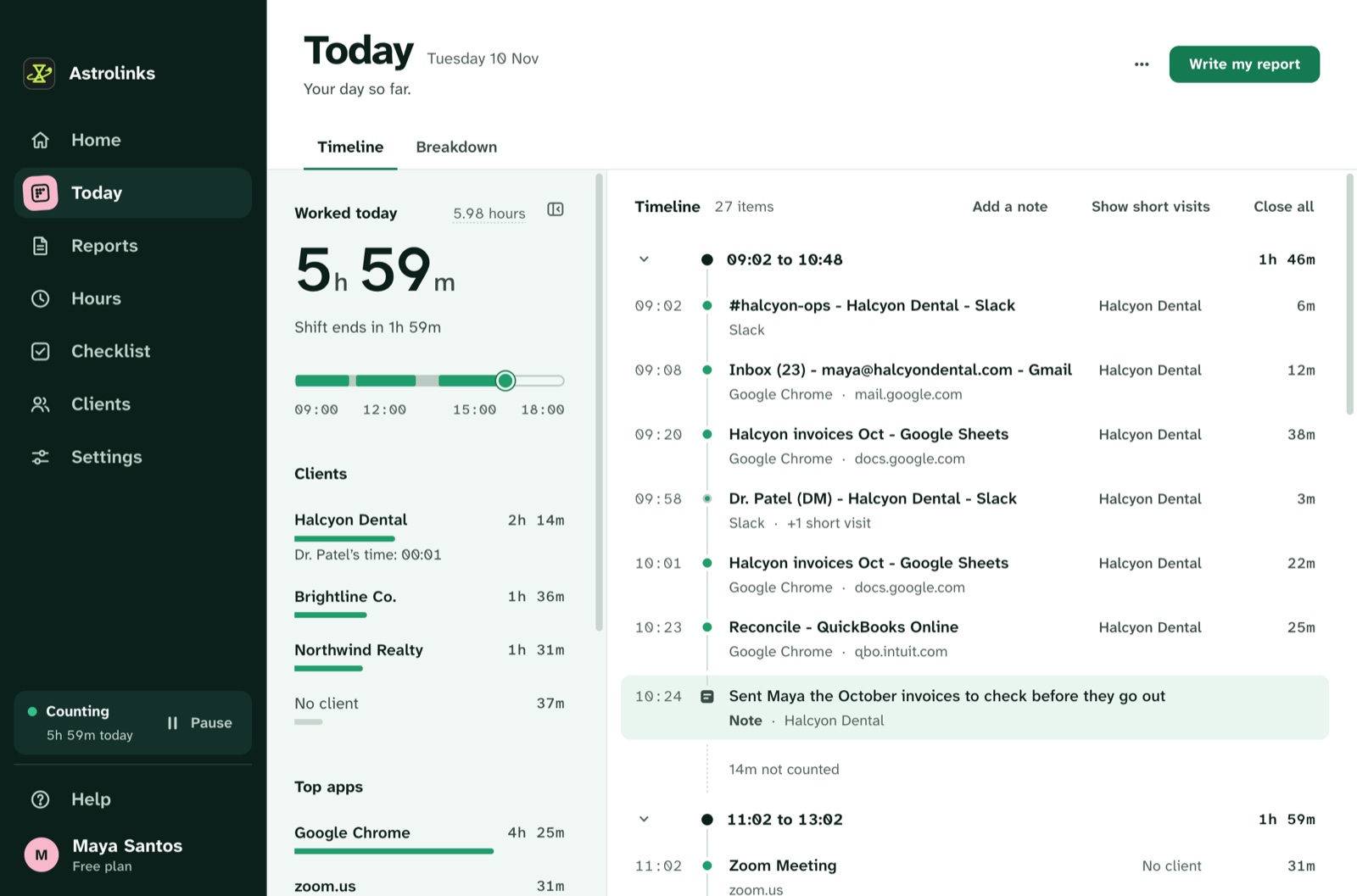
At the end of the day, Write my report writes each client's report from the same data. At the end of the month, Hours shows each client's time and amount, and Make invoice turns it into an invoice (invoices are on every plan; other dates than this week are part of Pro). See hours and invoices for how that works.
Related guides
- How to invoice hourly clients
- EOD report template for virtual assistants
- How to set goals as a freelancer
- See how it fits a week of client work on the Astrolinks for freelancers page