 Astrolinks


Short answer
Privacy-friendly time tracking records only what you need for billing and reports, like app names and window titles, and skips keystrokes, screenshots, the clipboard and webcam. Ideally the log stays on your own device, you can pause and delete it any time, and nobody else sees it unless you choose to send something.
Astrolinks tracks work by client with no screenshots or keystroke logging, and the log stays on your computer. Get it free →
Time tracking has a reputation problem. For many people it means screenshots every few minutes, keystroke counts and a manager's dashboard. It doesn't have to. Privacy-friendly time tracking exists, and it can be just as useful for billing and reporting. The trick is knowing what to look for, because every tool's homepage says it respects your privacy. This guide gives you the questions that separate the claims from the design, a way to test a tool yourself, and a message you can send a vendor before you install anything.
Why does privacy matter in a time tracker?
Privacy matters because a time tracker sees a lot. Window titles alone can show the names of clients, patients, documents and email subjects. Web addresses can show what you searched for. Over weeks, that becomes a detailed picture of your working life.
Who sees that picture matters:
- For freelancers and VAs, it can include clients' confidential information.
- For employees, it can feel like being watched, and in some places it's regulated.
- For everyone, it's one more pile of data that could leak.
Here is a simple example. A VA working for a dental office opens an email titled "Re: crown estimate for Maria Lopez". A tracker that records window titles now holds a patient's name and a treatment. If that title syncs to a server, it sits in someone else's database. Nobody meant any harm. The design did it.
The three questions that matter most
1. What does it record?
Read the list. Look for specifics, not "activity". Common items:
| Data | Privacy impact | What it can reveal |
|---|---|---|
| App names | Low | That you used Gmail or Excel |
| Window titles | Medium | Names, email subjects, file names |
| Web addresses | Medium | Searches, account IDs, order numbers |
| Keyboard and mouse activity counts | Medium | When you were at the desk |
| Keystrokes (what you type) | High | Messages, passwords, private notes |
| Screenshots or screen video | High | Everything on screen |
| Clipboard contents | High | Copied passwords, codes, addresses |
| Webcam or microphone | High | Your face, your home, your voice |
A tool that records only the low and medium rows, and lets you control them, is very different from one that records the high rows.
2. Where does the data go?
There are broadly two designs:
- Cloud-first: activity is sent to the company's servers, where reports are built.
- Local-first: activity stays on your device, and only what you choose to send leaves.
Neither is automatically bad. But with cloud-first, your data's privacy depends on the provider's security and policies. With local-first, it depends mostly on your own device.
A useful follow-up: if the data is in the cloud, how long is it kept, and can you delete it yourself, or do you have to ask?
3. Who can see it?
Ask who, specifically:
- Only you?
- Your manager or client?
- The company that makes the tool?
- Other companies it works with (subprocessors)?
The best answer for most people is "only you, unless you send something". A good privacy policy names its subprocessors in a list you can read. A vague "trusted partners" line is not an answer.
What should you ask before installing a privacy-friendly time tracker?
Ask what it records, where the data goes, who can see it, and whether you can pause it and delete your data. Here are nine questions in full:
- Does it record keystrokes? Not counts, the actual keys.
- Does it take screenshots? If yes, who controls them?
- Does it read the clipboard?
- Where is the activity log stored? On my computer, or on a server?
- Can I see exactly what is sent before it's sent?
- Can I pause it? Easily, any time?
- Can I delete my data? Today's, and everything?
- How does it handle private browsing and sensitive sites? And where does that stop working?
- If it uses AI, what does the AI get? The raw log, or a summary? Are emails and phone numbers hidden?
A good tool answers all of these clearly in its privacy policy, including the limits. Be wary of "100% private" or "completely anonymous". Real privacy policies list exceptions.
A message you can send a vendor
If the answers aren't on the website, ask. Copy this, fill in the name, and send it to the vendor's support address:
Hi [Vendor] team,

Before I install [Product], could you answer these in writing?

1. Does it record keystrokes, screenshots, screen video or the clipboard?
   Which of these are on by default, and who can turn them on?
2. Where is the activity log stored, and for how long?
3. Who can see it: me, my manager or client, your staff, your subprocessors?
4. Can I see what is sent before it leaves my computer?
5. Can I pause tracking and delete my own data without asking anyone?
6. How are private browser windows and sensitive sites handled?
7. If there is an AI feature, what exactly does the AI receive?

Thanks,
[Your name]
A clear, specific reply is a good sign. A reply that only links the homepage, or says "we take privacy seriously" without answering, tells you something too.
How do you test a time tracker for privacy?
Install it on a trial, feed it fake test data, then check what it recorded and what a viewer can see. It takes about 20 minutes. Policies are promises. A short test shows you the design. Try this on a trial before you commit:
- Install it and read every permission prompt. Note what it asks for. Screen recording or accessibility permissions are a clue to what it can see.
- Open a test page with a fake name in the title. For example, a document named "Test Patient Jane Doe". Later, see where that name shows up.
- Open a private browser window. Check whether it appears in the log.
- Copy a fake password like "test-password-123" and see if it appears anywhere.
- Pause, wait five minutes, resume. Confirm the gap really is a gap.
- Log in as the viewer. If there is a manager or client view, look at it. What can they see that you can't?
- Delete today's data. Check it's gone from every view you can reach.
Write down what you found next to what the policy says. If they don't match, trust what you saw.

How do you protect your clients' privacy when tracking time?
Keep sensitive apps and details out of the log, and ask clients about their own rules. Freelancers and VAs often see other people's information: patients, customers, staff. A time tracker can pick that up through window titles, like an email subject with a patient's name.
A few habits keep that safer:
- Add sensitive apps and sites to the tool's "never record" list, if it has one. Banking portals, health records systems and password managers are good candidates.
- Keep sensitive clients away from AI features, or check exactly what gets sent first.
- Name files and tabs without personal details where you can. "Invoice 1042" leaks less than "Invoice for John Smith".
- Ask your client whether they have rules about tools that handle their data. Some, like medical practices, often do.
If you work for a US healthcare client, patient information falls under HIPAA, and they may have rules about which tools are allowed to handle it. Ask before you install anything, and put the answer in writing. None of this replaces your client's own policies. It does make an accident less likely.
The law, in plain terms
This isn't legal advice, but a few points are worth knowing.
- Employee monitoring often needs notice. In the US, New York, Connecticut and Delaware have laws requiring employers to give notice of electronic monitoring. Other places have their own rules.
- Data about people in the EU and UK falls under the GDPR and the UK GDPR, which expect data to be limited to what's needed.
- Your clients may have contracts that limit where their data can go. Read them.
The safest habit for everyone is the same: collect less, keep it shorter, and tell people exactly what is collected.
Red flags
- Vague lists like "activity data" with no detail
- No way to see or export your own data
- Screenshots or keystroke logging that's on by default
- Monitoring features sold to managers as "productivity scores"
- A privacy policy that's hard to find, or doesn't mention AI
- No list of subprocessors, or a list that's years old
- "Stealth mode" or "invisible" tracking offered as a feature
The last one matters most. A tool that offers to hide itself from the person being tracked was designed for watching, not for helping.
If you're a manager
Choosing a privacy-friendly tool is also good management. People who feel watched tend to do the minimum that looks busy. People who are trusted tend to tell you what's really going on. Our guide on remote team updates without micromanaging covers how to get the information you need without monitoring.
Whatever you choose, tell your team exactly what it shares, in writing, before they start. A short note works:
What [Tool] shares with the company: the reports you choose to send, and your hours if you include them.
What it never shares: your activity log, screenshots, keystrokes or browsing.
Your controls: you can pause it, delete your data, and check every report before it goes.
If your team is weighing a screenshot tool against something lighter, our guide to time tracking without screenshots explains how to prove hours without them, and the Hubstaff alternative page compares the two approaches side by side.
How Astrolinks answers these questions
We built Astrolinks around these questions, so here are its answers, plainly:
- What it records: the app and window in front every 5 seconds while it runs, and the web address in supported browsers, without anything after "?" or "#". You can turn web addresses off. More on how that works is on the automatic time tracking page.
- What it never records: keystrokes, screenshots or screen video, the clipboard, sound, camera or location.
- Where it goes: the log stays on your computer. We never receive it. Nothing leaves without a click.
- AI: optional. On Pro and the trial, a built-in writing helper runs on your computer, so nothing about your day goes to us or to any AI company when it writes. On any plan, you can instead use your own Anthropic key, only after you say yes once. Then the summary goes straight from your computer to Anthropic, never through us. Claude gets a summary of your day, never the log, with emails and phone numbers hidden. What Claude sees shows the exact text first. A client marked Private never goes to AI.
- Teams: a company sees only the reports a worker chooses to send.
- Deleting: days are kept 14 days by default (1 to 365, your choice). Delete today or everything any time.
- The limits: Safari private windows are recorded on a Mac, because Safari doesn't say when a window is private. Pause first if you don't want that.
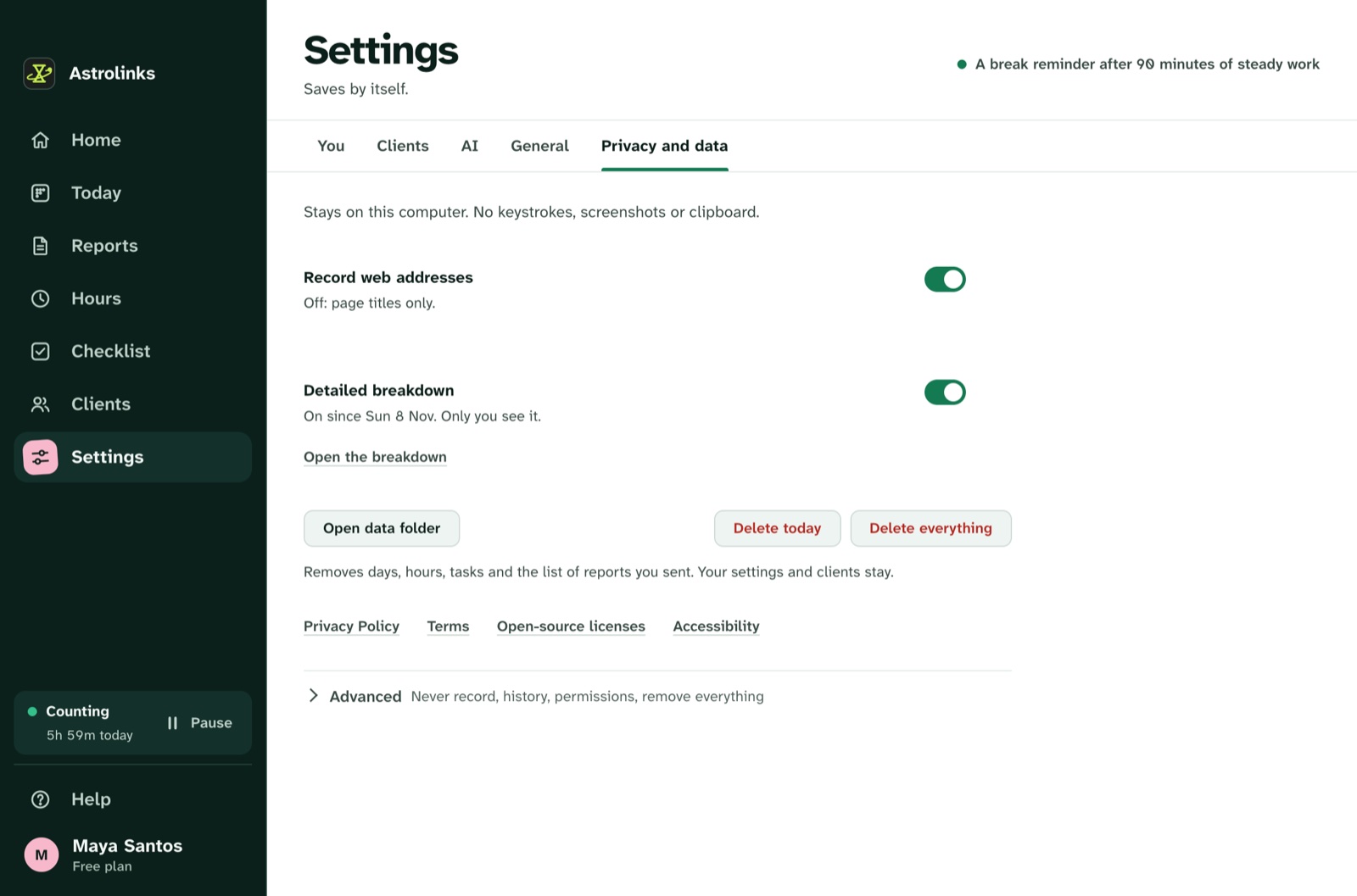
The full list is on the privacy-first page. Teams can read Astrolinks for remote teams.
Comparing monitoring tools? Our side-by-side guides cover ActivTrak alternatives, Teramind alternatives and DeskTime alternatives.