 Astrolinks


Short answer
Yes, your employer can see your screen if monitoring software is installed on the computer you work on. Depending on the tool, it can take screenshots, record video of your screen, log apps and websites or count keystrokes. It's most likely on a company laptop. On your own computer, it usually needs software you installed or agreed to.
Astrolinks tracks work by client with no screenshots or keystroke logging, and the log stays on your computer. Get it free →
You're working from home, a chat window open in one corner, a recipe in another tab, and a thought crosses your mind: can my employer see my screen right now? Maybe a coworker said "they can see everything." Maybe a new app appeared in your menu bar after an IT update. Either way, it's an uneasy feeling.
Here's the honest answer, written for employees, contractors and virtual assistants who work from home. We'll cover what monitoring software can capture, why it matters whose computer it is, how to check what's installed, what the law says in broad strokes and a calmer way to show your work.
If you want the bigger picture on why these tools are spreading, our guide to bossware covers the trend. This post sticks to your direct question.
Can my employer see my screen?
Your employer can see your computer screen if there is software on the computer that captures it and sends it to them. That's the whole condition. Your boss has no magic window into your laptop. Something has to be installed, and something has to be switched on.
When that software is there, "seeing your screen" can mean a few different things:
- Screenshots at intervals. A picture of your screen every few minutes, sent to a dashboard. This is the most common form.
- Screen recording. Yes, your employer can record your screen this way: video that can be replayed later. It is less common, and mostly found in full monitoring suites.
- A live view. Some tools, including remote support tools IT uses to fix problems, can show your screen as it happens.
- App and website logs. Not a picture, but a list of which apps and web addresses you used and for how long. Many people forget this one, and it can say a lot.
- Keyboard and mouse activity. Some tools count whether you typed or moved the mouse each second. Fewer tools log what you actually type.
Not every tool does all of this, and most let the employer choose which features to turn on. A time tracker with screenshots switched off can't show anyone your screen. A full monitoring suite with everything on can show a great deal.
Can my employer see my screen remotely?
Yes, if the software allows it. Distance doesn't matter to monitoring software. A tool that sends screenshots to a dashboard works the same way whether you're in the office, at home or in a café. The pictures travel over the internet to wherever your employer views them.
Remote support tools work differently. They let someone in IT see your screen, and sometimes control it, so they can fix a problem. Many are set up to ask you to accept the session first. On a company-managed computer, IT may configure things differently, so it's worth asking how your company's support tool works.
What your employer can't do is look at a computer that has none of this software. Without an app, a browser extension, a device management profile or a remote access tool, there's no channel for your screen to reach them.
Company laptop or personal computer: does it change the answer?
It changes the answer a lot. Whose computer you use is usually the biggest factor in what your employer can see.
On a company laptop, assume it can be monitored. Your employer owns it, IT usually manages it, and IT can install software centrally. In many places, employers have wide room to monitor their own equipment. Treat anything you do on it as visible to the company, and keep personal banking, health and private messages on your own devices.
On your personal computer, your employer generally needs you to install something or agree to something. That might be a time tracker your client requires, a security app, a work profile or a browser extension. The catch is that you may have agreed without reading the details, during onboarding, with a dozen other forms. Our guide to using your personal laptop for work explains how to keep work and personal life apart if you're in that spot.
Work accounts are their own layer. Even without monitoring software, your employer can usually see activity inside the accounts they run, like company email, chat and shared files. That isn't your screen, but it's part of the picture.
Can my employer see my screen without me knowing?
On a managed company computer, it's possible. On a personal computer you control, it's much less likely, because software normally needs your permission to install and, on a Mac, to record the screen.
Some monitoring products are built to run quietly in the background. Others are designed to be visible. Hubstaff, for example, says its standard desktop timer only tracks after the worker clicks start, while a separate Silent app that companies deploy through device management on company-owned computers can track in the background (Hubstaff help center). The same product can behave very differently depending on how it's set up.
In some places, secret monitoring is restricted. The UK data protection regulator, the ICO, published guidance on monitoring workers in October 2023 that expects employers to tell workers about monitoring, and says covert monitoring is rarely justified. Rules elsewhere can be looser.
So the honest answer is: it can happen, mostly on company equipment, and the reliable way to know is to check and to ask.
How to know if my employer can see my screen
These are transparency checks. They help you understand what's on your computer so you can ask good questions. They are not about hiding from or switching off anything your employer installed, which could break a policy you agreed to and cost you the job.
1. Check if the device is managed.
- On a Mac, open System Settings, then General, then Device Management. Apple explains what you'll see in its Device Management guide. A line saying the Mac is supervised and managed by an organization is a clear sign.
- On Windows, open Settings, then Accounts, then Access work or school. Microsoft says the Info button on a connection lists the policies and apps your organization installed (Microsoft Learn).
A management profile doesn't prove screen monitoring. It means IT can install software and change settings on that computer.
2. See which apps can record your screen (Mac). In System Settings, open Privacy and Security, then Screen and System Audio Recording. Apple's screen recording guide shows where it is. Any app listed and switched on has been allowed to capture your screen. Look for names you don't recognize, then search them.
3. Look at what's running. Open Activity Monitor on a Mac or Task Manager on Windows. Scroll through the list for apps you didn't install. Check the menu bar or system tray for icons too. Search any unfamiliar name before drawing conclusions, since many are ordinary system or security processes.
4. Read your paperwork. Look through your contract, handbook and anything you signed at onboarding for words like monitoring, acceptable use, screenshots or no expectation of privacy.
5. Ask in writing. This is the most useful step. Send HR or IT a short, friendly message:
Hi, I'd like to understand the software on my work computer. Could you tell me which monitoring or time tracking tools are installed, whether they take screenshots or screen recordings, who can see the data, how long it's kept, and whether anything runs outside my working hours? Thanks.
A clear written answer beats any amount of guessing. If you're a contractor or VA, send the same message to your client or agency. You have every right to know what a tool on your own computer records.

Is it legal for my employer to see my screen?
This is general information, not legal advice. Laws differ by country and state and change over time, so check your local law or ask a local employment lawyer, worker center or union.
In the United States, the federal Electronic Communications Privacy Act, known as ECPA, protects wire, oral and electronic communications, as the Bureau of Justice Assistance summary explains. It has exceptions, though, and in practice employers usually have wide room to monitor computers and accounts they own, especially when there's a business reason or you've consented. Some states add notice rules on top. Our bossware guide covers one example, New York's written notice law.
In the UK and EU, data protection law applies to monitoring. The ICO's guidance says monitoring has to be necessary and proportionate, workers should normally be told about it, and workers can ask for a copy of the personal data collected about them, including through monitoring. In the EU, the GDPR sets similar principles, and national rules can add more.
Wherever you are, a few points tend to hold: company equipment gets less privacy than your own, being told about monitoring in advance matters, and you can usually ask what's collected about you.
What can you do if you don't want your screen watched?
You have more options than it might seem, and none of them involve sneaking around.
- Keep personal life off work devices. Use your own phone for private messages, banking and health. It's the simplest protection there is.
- Ask what's on and why. Sometimes screenshots are on because nobody changed the default, not because anyone wants them.
- Suggest a different kind of proof. Most managers don't want to look at screenshots. They want to know the work got done and the hours are right. You can give them that more clearly than a screenshot ever could.
Skip the workarounds you'll see online, like mouse jigglers or switching software off. They can break your agreement and damage trust far more than the monitoring did. We explain why in our post on mouse jigglers.
An honest alternative: a daily written report
Here's what usually answers an employer's real worry: a short end-of-day report. What you finished, what's still in progress, what's blocked, what's next, and your hours. It takes a few minutes, it's written by you, and it shows results instead of pixels.
The hard part is remembering what you did across a long day. That's where a private log helps.
Astrolinks is a desktop app for Mac and Windows that keeps a private log of your workday on your own computer: the app in front, the window title and the web address. It takes no screenshots, records no keystrokes and skips private browser windows. It sorts your time by client, and at clock-out it writes each client's end-of-day report. You read it, edit it and send it yourself. Nothing leaves your computer unless you send it.
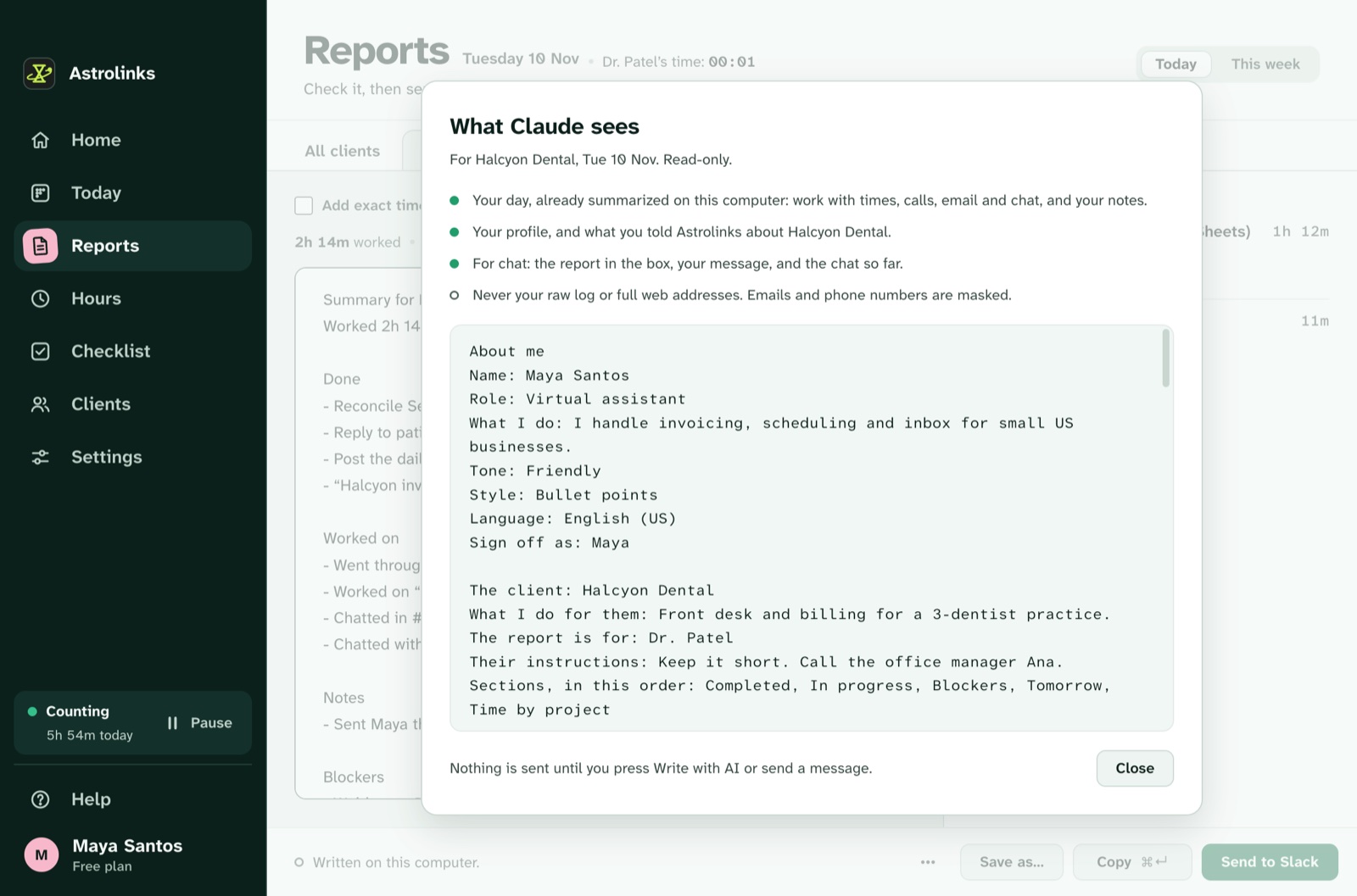
Invoices from your tracked hours are free on every plan. Pro adds a built-in AI writing helper that runs on your own computer, so your day isn't sent to an AI company. The free plan covers 4 hours a day and 2 clients, and every install starts with 7 days of Pro, no card needed.
If your employer or client is open to it, propose a trial: a month of daily reports instead of screenshots, then review together. The privacy-first page lists exactly what Astrolinks records, and Astrolinks for virtual assistants shows how it works across several clients.
The short version
Your employer can see your screen only if software on your computer captures it, and that's most likely on a company laptop. Check whether the device is managed, look at which apps can record your screen, read your paperwork and ask in writing. Know your rights in broad strokes, check the details locally, and if you'd rather be judged on your work than your pixels, offer a daily written report.