 Astrolinks


Short answer
Using your personal laptop for work is common and usually fine if you separate the two. Make a separate user account or browser profile for work, keep client files in client accounts, use a password manager, and read exactly what any tracking or device management software can see before you install it. You can say no to tools that record your whole screen.
Astrolinks tracks work by client with no screenshots or keystroke logging, and the log stays on your computer. Get it free →
Most virtual assistants and freelancers, and plenty of employees, work on their own computer. The same laptop holds your banking, your family photos, your personal messages and, during working hours, your clients' inboxes and files. That's normal. It also means you should think a little about what work software can see and how to keep the two sides apart.
This guide covers what employers and clients can and can't see on a personal laptop, how to separate work from personal life on one machine, and what to ask before you install any tracking or management software.
What can an employer or client see on your personal laptop?
It depends almost entirely on what you install and what you sign in to.
| What you use | What they can usually see |
|---|---|
| Work email, chat, docs in your browser | Activity inside those accounts: messages, files, sign-in times and sometimes the device and location of sign-ins |
| A shared password manager vault | What's in the shared vault, and often when items are used |
| A time tracker with screenshots | Pictures of your screen while it runs, whatever is on it |
| A tracker with activity or app logging | Apps and websites you use while it runs, and keyboard or mouse activity levels |
| Device management (MDM) enrollment | Depending on setup: installed apps, settings, device details, and in some setups the ability to erase the device |
| A VPN they provide | Traffic that goes through it while it's connected |
What they can't see by default: your personal accounts, files outside work folders, or anything on the computer they have no software on. The line moves the moment you install something they control. That's why the install step deserves the most attention.
Should you install a client's time tracker on your own computer?
Sometimes you have little choice. Some platforms and agencies require their own tracker, and Upwork's hourly payment protection depends on its own time tracker and Work Diary. But often a client asks for a tracker simply because they don't know another way to see the work.
Before you install anything, ask these six questions:
- Does it take screenshots? How often, and can I see and delete them?
- Does it record keystrokes, or only count activity?
- Does it record websites and apps? Full addresses or just site names?
- Does it run only while I've started a timer, or all the time?
- Can it see other user accounts or browser profiles on this computer?
- What happens to the data when our contract ends?
If you work for several clients, question 1 matters most. A screenshot taken during one client's hour can't capture another client's work if you're disciplined, but one quick check of a different inbox at the wrong moment, and it can.
You can send the questions as one short message:
"Happy to set this up. Before I install it, could you tell me: does it take screenshots, and how often? Does it record keystrokes, websites or apps? Does it run only while I've started a timer? And what happens to the data when our contract ends? I work on my own computer, so I want to make sure it only sees your work."
Most clients answer honestly, and some realise they never needed the screenshot setting in the first place. If the answers are vague, look the tool up on its own website, where the help pages usually explain exactly what it records and which settings a client can turn on.
How do you offer an alternative to screenshot tracking?
Many clients agree to an alternative if you offer one before they insist. Something like this works:
"I'd rather not run screenshot software on my computer because I also handle other clients' confidential data. Instead, I'll send you a short report at the end of each day with what I finished, what's in progress and my hours, and you'll get the hours on every invoice. If anything ever looks off, ask and I'll walk you through it."
Then do it every day without fail. Consistent daily reports build more trust than screenshots ever did. Our guide to time tracking without screenshots has more ways to prove hours.

How do you separate work and personal on one computer?
Three levels, from strongest to lightest.
1. A separate user account
Create a second user on your computer just for work. On a Mac it's in System Settings, Users and Groups. On Windows 11 it's in Settings, Accounts, Other users. Each account has its own files, apps, browser and saved passwords. Work software installed in the work account doesn't see your personal account's files.
This is the strongest simple option, and the best place for any client-required tracking software. The cost is switching accounts, which takes a few seconds.
2. A browser profile per client or employer
Chrome, Edge and Firefox all support profiles, and Safari added profiles in Safari 17. Each profile keeps its own sign-ins, history, bookmarks and extensions. If most of your work happens in a browser, one profile per client is a light way to stop accounts from crossing over and to keep clients' sessions apart.
3. Folders and habits
At minimum, keep client files in the client's own storage (their Google Drive or Dropbox) rather than your personal one, and use a separate email address for work. It's not technical separation, but it makes ending a client relationship clean.
What basic security should a personal work laptop have?
Clients trust you with their data. On a personal laptop, you are the IT department. Check these:
- Operating system and browser updated automatically
- Disk encryption on (FileVault on Mac, BitLocker or Device Encryption on Windows, where available)
- A password manager, with a unique password for every account
- Two-step verification on every work account
- Screen locks after a few minutes away
- Backups of your own files, kept separate from client files
- No shared logins with family members on the work account
When should you say no?
It's reasonable to decline, or ask for changes, when:
- Software records all the time, not just during paid hours.
- Device management would let a client erase your whole computer. For a personal device, that's too much power for one client to hold.
- There's no written description of what the tool records.
- The client won't say what happens to the data when work ends.
If an employer needs that level of control, the fair answer is usually a company laptop. If a client needs it, it's worth asking whether the job is the right fit. Our guide to bossware explains what these tools can record and what your rights may be.
What about your phone?
The same thinking applies to a personal phone, often with less attention. Work chat and email apps on your phone can show work messages on your lock screen, and some employers require their own management profile before you can open work email on a phone.
- Turn off work notifications outside working hours, or use your phone's focus or do-not-disturb modes on a schedule.
- If a client asks you to install a management profile, ask what it controls, just as you would for a laptop. Some setups for personal phones manage only the work apps and their data, not the whole phone, but check rather than assume.
- Keep client files out of your personal photo library and cloud backup. Screenshots of client data are easy to take and easy to forget.
What should you do when a contract ends?
- Uninstall any software the client required, and check it's really gone.
- Sign out of the client's accounts and remove their browser profile.
- Return or delete client files as your contract says.
- Remove client items from your password manager.
- If you enrolled in device management, ask them to release the device and confirm it's removed.
Where Astrolinks fits
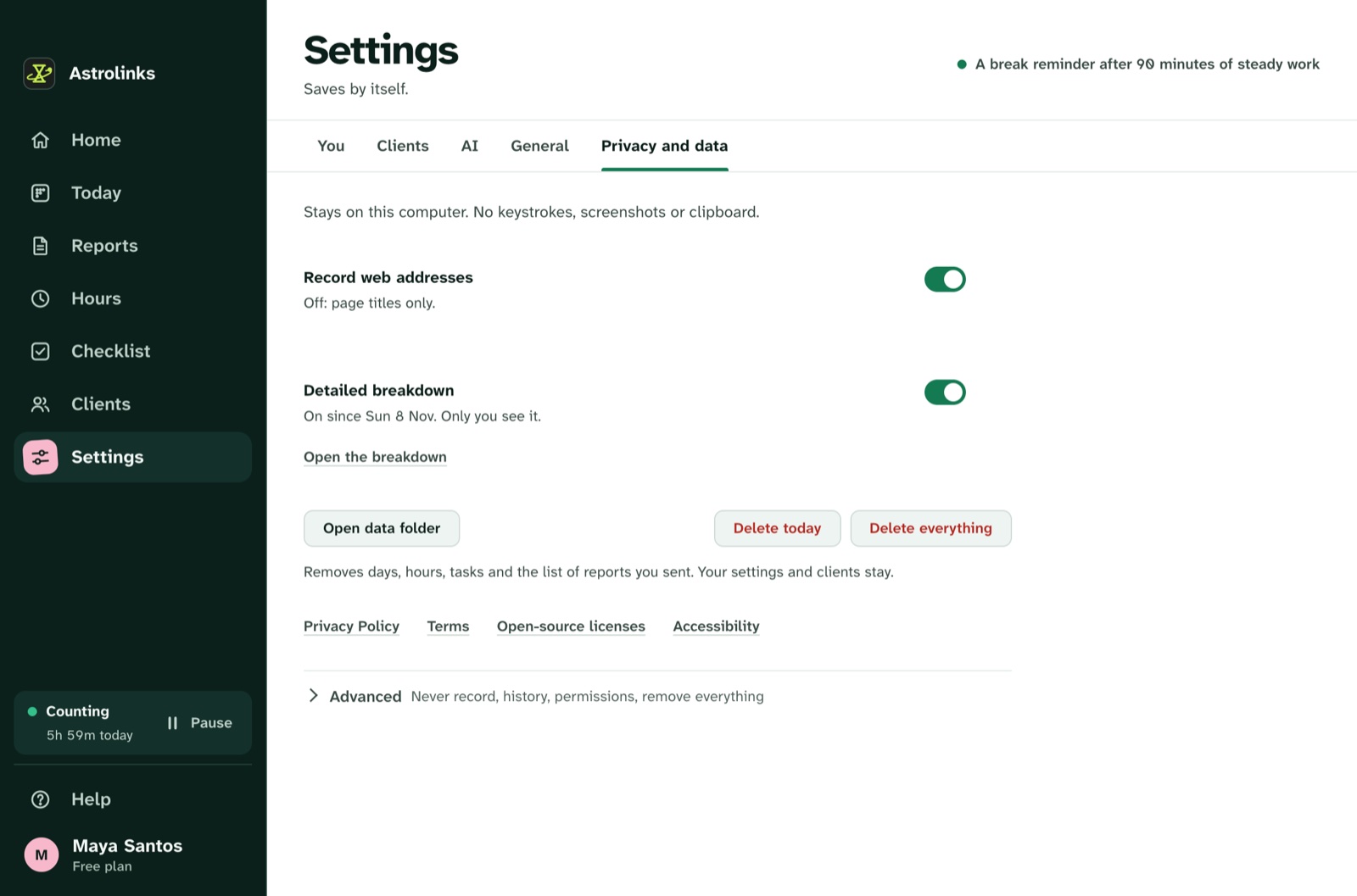
We make Astrolinks, a desktop app for Mac and Windows built for people who work for several clients on their own computer. It keeps a private log of your workday on that computer, sorted by client. It takes no screenshots, records no keystrokes, and skips private browser windows, and nothing leaves the computer unless you press a button. At clock-out it writes each client's end-of-day report, with no AI needed, which is the alternative to screenshots this guide recommends.
The free plan counts up to 4 hours a workday for 2 clients, and every copy starts with a 7-day Pro trial with no card. See the privacy design or Astrolinks for freelancers.
The short version
Your personal laptop is yours. Work accounts show employers and clients what happens inside them; installed software can show much more. Separate work with a user account or browser profiles, keep client files in client storage, lock down security, and ask six questions before installing any tracker. Offer daily reports instead of screenshots, and say no to tools that want more control than the job needs.