 Astrolinks


Short answer
Hubstaff screenshots are taken only while your timer is running, at random moments within each 10-minute period. Your organization's owners and managers choose how many, from none up to three per 10 minutes or more with an add-on, and whether they're blurred. Depending on settings, you can view your own screenshots and delete them along with that time.
Astrolinks tracks work by client with no screenshots or keystroke logging, and the log stays on your computer. Get it free →
Your new client sends a welcome email, a contract and a line near the bottom: "Please install Hubstaff and track your time while working." You've heard it takes screenshots. You don't know how many, who looks at them, or whether you can delete the one that catches your bank tab by accident.
This guide answers those questions for the person doing the work. Every fact about Hubstaff here comes from Hubstaff's own help center and pages, linked as we go, and checked in November 2026. Settings and features can change, so if something looks different in your app, the help center is the place to confirm.
How does Hubstaff take screenshots?
Hubstaff takes screenshots through its desktop app, and only while your timer is running. According to Hubstaff's article on what the desktop app tracks, screenshots begin when you start the timer. If a screenshot is due when you stop, the app takes that last one, and no screenshots are taken after tracking stops.
That's the most useful fact for your privacy: when your timer is off, the desktop timer isn't taking screenshots. Hubstaff does mention one exception. A separate Silent app, deployed by a company through device management on company-owned computers, can track in the background. If you're a contractor on your own laptop installing the regular app, you start and stop it yourself.
A few more details from the same article:
- Mouse and keyboard: Hubstaff records only whether there was activity, not the keys you typed.
- Apps: recorded if your organization turns it on, and only the app you're actively using.
- Web addresses: recorded if your organization turns it on, while you're active on the site.
If you have more than one monitor, Hubstaff's FAQ says it captures all active displays connected to your computer while you're tracking.
How often does Hubstaff take screenshots?
Hubstaff screenshots are taken at random times within each 10-minute period, not on a fixed clock. Hubstaff's guide to changing screenshot frequency lists the options as 1x, 2x or 3x per 10 minutes. Organizations that want more can buy a More Screenshots add-on. The FAQ adds that free plans are limited to 1x.
Two details worth knowing:
- No screenshots during idle time. The frequency guide says screenshots aren't captured while you're idle. If idle time is kept, the report shows the words "Idle time" instead of a picture.
- Frequency can be set per person. The organization can set one global frequency and a different one for individual team members.
You may also see a small notice when a screenshot is taken. Hubstaff's article on screenshot notifications says you can switch this on or off in the app's Preferences with the box labeled "Show notification when screenshot is taken." It's on by default from desktop app version 1.5.15. The notification setting controls whether you see the notice. Hubstaff's article doesn't say it changes whether screenshots are taken, so don't assume it does.
Can I blur or delete my Hubstaff screenshots?
These are the two questions workers ask most, and the answers depend on your organization's settings.
Blur
Hubstaff lets organizations blur screenshots for the whole organization or for specific users. Its privacy-first monitoring page says that once blurring is applied to images, it can't be reversed. Hubstaff's organization settings guide explains that the blurred image comes from the actual screenshot taken and uploaded to the server.
Blur is a setting your admin controls, so if you handle sensitive work, like patient records, client finances or legal files, it's reasonable to ask for it.
Delete
The FAQ says admins can enable members to delete screenshots, for the whole organization or for specific users. Hubstaff's roles and permissions guide adds an important detail: for the member role, screenshots can only be deleted together with the corresponding timesheet or time block. In other words, deleting a screenshot usually means deleting that slice of tracked time too, so it won't count toward your hours.
The organization settings guide also says users always have the ability to delete their own time entries, and that when time is deleted, the screenshots and activity levels go with it, permanently. The FAQ confirms deleted items can't be retrieved.
So if you forget to stop the timer and a personal moment ends up in a screenshot, you can usually remove it, at the cost of that time. Hubstaff's privacy page describes this exact case: forgetting to stop the timer.
Can I see my own screenshots?
Yes. The roles guide lists "Own" for what a regular user can view, and Hubstaff's privacy page says users can access their screenshot data at any time. Organization owners can see screenshots, and so can managers, project managers and team leads where their role and settings allow it.
Can I disable Hubstaff screenshots?
Not by yourself. Hubstaff's article on how to disable screenshots says admins can choose None in the Screenshot Frequency setting, either for everyone or for individual members, and that only organization owners and managers can change those settings.
That means "Hubstaff disable screenshots" is a request, not a setting you can reach. The good news is that it's a setting your client can change in a minute, for you alone, without changing anything for the rest of their team. If screenshots make you uneasy, ask. There's a sample message near the end of this post.
What we won't do is suggest ways to block, fool or work around the tracker. That breaks the agreement you made, and trust is much harder to rebuild than a setting is to change.
What does the Hubstaff activity percentage mean?
The activity percentage is often more confusing than the screenshots. Hubstaff's article on how activity levels are calculated explains it plainly. Each second is marked active if there was any keyboard or mouse input, and inactive if there wasn't. Then:
Active seconds ÷ 600 = activity percentage for each 10-minute block.
Some time doesn't count toward the percentage at all: manual time, breaks, time tracked on the mobile apps or web timer, and projects where activity recording is turned off.
What this means for you:
- Reading, thinking and calls look quiet. Reviewing a long contract or listening on a client call produces little input, so the percentage drops.
- Some jobs naturally run higher. Hubstaff says data entry and development usually show higher rates than meeting-heavy roles.
- Hubstaff itself says don't treat it as a score. The same article says Hubstaff discourages quotas or scoring based on activity rates and suggests looking at activity as a trend that starts a conversation.
If your client is reading your percentage like a grade, that last point is worth sharing with them, politely, with the link.

What about Hubstaff screenshots on Reddit?
If you've searched "hubstaff screenshots reddit," you've likely found long threads of first-hand stories, worries and guesses. Some are helpful. Many describe one company's settings or an older version of the app, and settings vary a lot from one organization to the next.
Use those threads for perspective, then check the facts that matter to you in two places: Hubstaff's help center, and your own organization's settings. The second one matters most, and the simplest way to learn it is to ask.
What you can and can't change
Here is the short version, based on the Hubstaff articles linked above.
| Question | Who decides |
|---|---|
| How many screenshots per 10 minutes, or none | Organization owners and managers |
| Whether screenshots are blurred | Set by the organization, for everyone or for specific users |
| Whether you can delete screenshots | Admins enable it; members delete them together with that time |
| Deleting your own time entries | You, per Hubstaff's organization settings guide |
| Seeing your own screenshots | Members can view their own |
| The notice when a screenshot is taken | You, in the app's Preferences |
| When tracking happens | You, by starting and stopping the timer (standard desktop app) |
| App and URL tracking | The organization turns it on or off |
How to ask your client for a report instead
Many clients choose Hubstaff for one reason: they want proof that the hours they pay for were worked. Screenshots are one way to show that. A short written report is another, and it often tells them more.
A daily report covers what you finished, what's in progress, what's blocked, what's next and your hours. Clients can read it in a minute. It shows results instead of activity percentages, and it keeps their customers' data and your private tabs out of a screenshot gallery.
Here's a message you could adapt:
Hi, happy to track my hours carefully. Would you be open to a trial where screenshots are set to None for me, and instead I send you a short end-of-day report with my hours, what I finished and anything blocked? It keeps your clients' information out of screenshots and gives you a clearer picture of progress. We could try it for a month and then decide together.
Some clients will say yes right away. Some will want to keep Hubstaff for hours but drop screenshots, which is also a good outcome. Some will say no, and that's their call. Then you know where you stand.
If you're looking for a tool that makes those reports easy, Astrolinks is one option. It's a desktop app for Mac and Windows that keeps a private log of your workday on your own computer: the app, window title and web address. It takes no screenshots, records no keystrokes and skips private browser windows. It sorts your time by client and writes each client's end-of-day report at clock-out. You review it and send it yourself, and nothing leaves your computer unless you do.
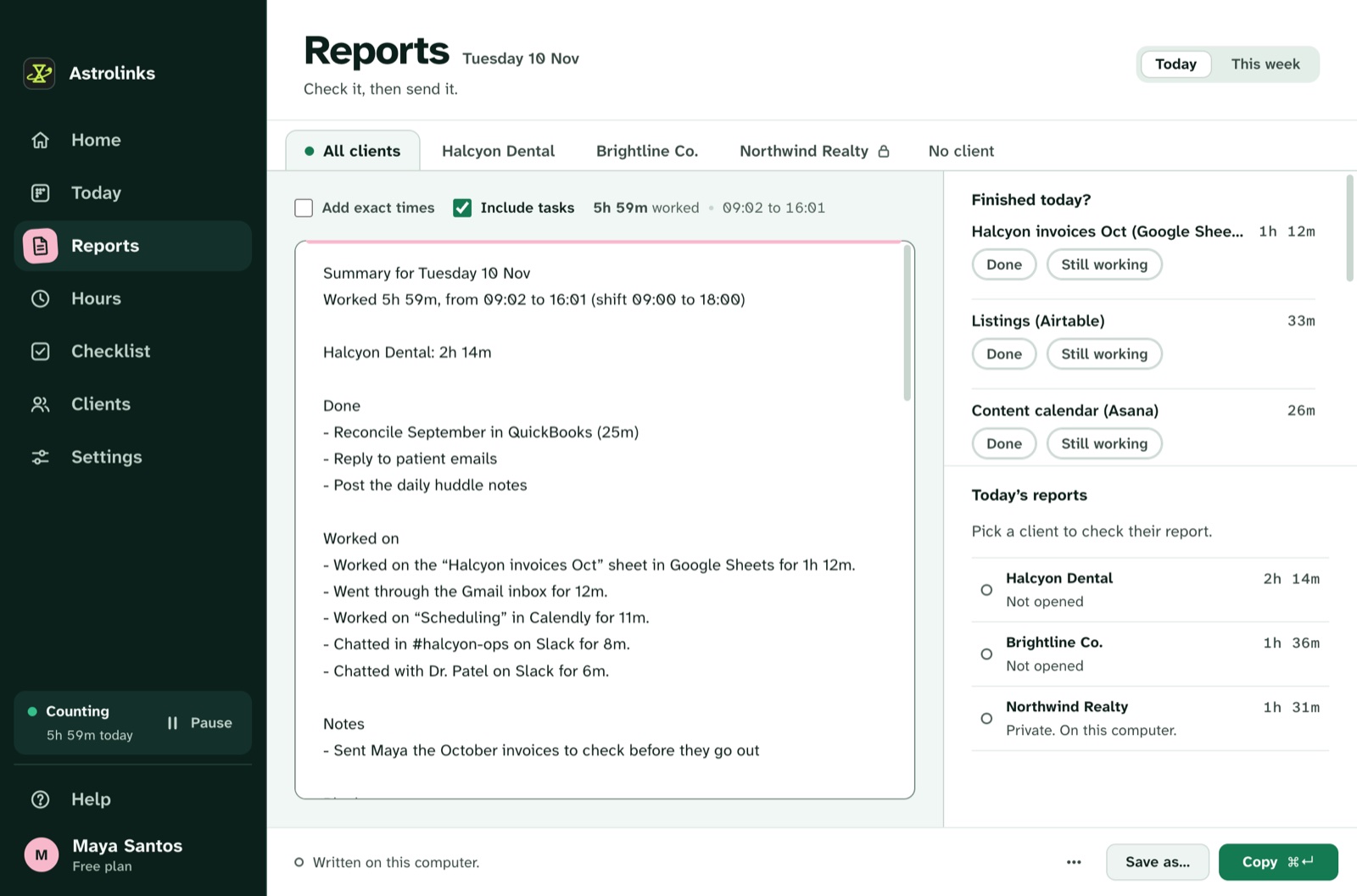
Invoices from tracked hours are free on every plan, and Pro adds a built-in AI writing helper that runs on your computer. The free plan covers 4 hours a day and 2 clients, and every install starts with 7 days of Pro, no card needed.
For a fair, side-by-side look, including when Hubstaff is the better choice, see our Hubstaff alternative comparison. The privacy-first page lists exactly what Astrolinks records.