 Astrolinks


Short answer
To calculate hours worked, subtract the start time from the end time, then subtract unpaid breaks. Turn leftover minutes into decimal hours by dividing them by 60. For example, 8:45 am to 5:20 pm with a 45-minute lunch is 7 hours 50 minutes, or 7.83 hours. In Excel or Google Sheets, use =MOD(End-Start,1)*24.
Astrolinks sorts your day by client without a timer and turns the hours into client updates and invoices. Get it free →
Calculating hours worked sounds like school math, and mostly it is. The trouble is that time doesn't count in tens. An hour has 60 minutes, the clock flips at noon and at midnight, and a lunch break sits in the middle of everything. Small slips add up: write 7.50 when you meant 7 hours 50 minutes and you've lost 20 minutes of pay.
This guide shows how to calculate hours worked by hand, with a lunch break, in Excel and in Google Sheets, for a whole month, and how to check the result yourself. Every example adds up, and you can copy every formula as it is.
How do you calculate hours worked by hand?
Put both times on the 24-hour clock, subtract the start from the end, take off unpaid breaks, and turn the minutes into a decimal. Four steps:
- Use the 24-hour clock. Add 12 to any pm hour except 12 pm. So 5:20 pm is 17:20 and 12:30 pm stays 12:30. Midnight is 0:00.
- Subtract the start time from the end time. Hours from hours, minutes from minutes.
- Subtract unpaid breaks.
- Convert to decimal hours if you're billing or doing payroll: divide the minutes by 60.
Worked example
Start 8:45 am, end 5:20 pm, 45-minute lunch.
- 5:20 pm is 17:20.
- 17:20 minus 8:45. You can't take 45 minutes from 20, so borrow an hour: 17:20 becomes 16:80. Now 16:80 minus 8:45 is 8 hours 35 minutes.
- Take off lunch: 8:35 minus 0:45. Borrow again: 7:95 minus 0:45 is 7 hours 50 minutes.
- 50 divided by 60 is 0.83, so that's 7.83 hours.
The counting-up check
If borrowing feels error-prone, count up from the start time in easy jumps instead:
- 8:45 to 9:00 is 15 minutes
- 9:00 to 17:00 is 8 hours
- 17:00 to 17:20 is 20 minutes
That's 8 hours 35 minutes, the same as before. Doing it both ways takes a few seconds and catches most mistakes.
How do you calculate hours worked with a lunch break?
Work out the time from start to end, then subtract the unpaid lunch, or add up the two stretches of work on either side of it. Both give the same answer.
Using the same day, with lunch from 12:30 to 13:15:
| Stretch | From | To | Time |
|---|---|---|---|
| Morning | 08:45 | 12:30 | 3 h 45 min |
| Afternoon | 13:15 | 17:20 | 4 h 05 min |
| Total | 7 h 50 min (7.83 h) |
3 hours 45 plus 4 hours 5 is 7 hours 50 minutes. It matches the first method, which is a good sign.
Only take off breaks that are unpaid. If you're an employee, which breaks are paid depends on your country, state and contract. If you're a freelancer or contractor, it depends on what you agreed with the client: most don't bill lunch, and many do bill a 10-minute call taken while eating.
How do you convert minutes to decimal hours?
Divide the minutes by 60. Invoices and payroll use decimal hours, so 7 hours 50 minutes goes on the bill as 7.83, not 7.50. Here are the common ones, rounded to two places:
| Minutes | Decimal hours | Minutes | Decimal hours |
|---|---|---|---|
| 1 | 0.02 | 30 | 0.50 |
| 5 | 0.08 | 35 | 0.58 |
| 6 | 0.10 | 40 | 0.67 |
| 10 | 0.17 | 45 | 0.75 |
| 12 | 0.20 | 48 | 0.80 |
| 15 | 0.25 | 50 | 0.83 |
| 18 | 0.30 | 54 | 0.90 |
| 20 | 0.33 | 55 | 0.92 |
| 25 | 0.42 | 60 | 1.00 |
To go the other way, multiply the decimal part by 60. 0.4 hours is 24 minutes, so 6.4 hours is 6 hours 24 minutes.
The most common mistake is reading the colon as a decimal point. 7:30 is 7.5 hours. 7.30 hours is 7 hours 18 minutes. On a 40-dollar rate, mixing those up costs 8 dollars a day.
How do you calculate hours worked in Excel?
Type times as times, subtract them, and multiply by 24. Excel stores a time as a fraction of a day, so 12 hours is 0.5. Multiplying by 24 turns that fraction into hours.
Set up columns like this:
| A | B | C | D | E | |
|---|---|---|---|---|---|
| 1 | Date | Start | End | Break (min) | Hours |
| 2 | 2026-12-07 | 8:45 | 17:20 | 45 | 7.83 |
In E2, put:
=MOD(C2-B2,1)*24-D2/60
- C2-B2 is the time between start and end, as a fraction of a day.
- MOD(...,1) fixes shifts that cross midnight. Without it, 06:30 minus 22:00 is negative and Excel shows a row of #### signs.
- Times 24 turns the fraction into hours.
- D2/60 turns the break minutes into hours so they can be subtracted.
Format columns B and C as Time, and column E as a Number with two decimals. If E is formatted as Time, 7.83 shows up as a clock time and makes no sense.
Other Excel formulas you may need
If you record lunch out and lunch in instead of break minutes, with Start in B, Lunch out in C, Lunch in in D and End in E:
=((C2-B2)+(E2-D2))*24
If the break is typed as a time, like 0:45, in D2:
=(MOD(C2-B2,1)-D2)*24
To show the result as hours and minutes instead of a decimal, leave out the times 24, as in =MOD(C2-B2,1)-D2/1440, and format the cell as [h]:mm. The square brackets stop Excel from starting again at 24 hours.
To round to two decimals, wrap the formula: =ROUND(MOD(C2-B2,1)*24-D2/60,2). To round to the nearest quarter hour, use =MROUND(E2,0.25), which turns 7.83 into 7.75. Only round if your agreement or employer says to.
For the week, put =SUM(E2:E8) at the bottom. To get pay or an invoice amount, multiply the total by the rate.

How do you calculate hours worked in Google Sheets?
Use the same formulas as Excel. Google Sheets stores times the same way, so =MOD(C2-B2,1)*24-D2/60 works without changes, and so do ROUND, MROUND and SUM.
A few differences in the menus:
- Select the Start and End columns and choose Format, Number, Time.
- For the Hours column, choose Format, Number, Number to see 7.83.
- For a total in hours and minutes, choose Format, Number, Duration. Duration doesn't start again at 24 hours, so a week of 35 hours 20 minutes shows as 35:20:00.
- Type times as 8:45 or 17:20, or 8:45 am and 5:20 pm. If a time sits on the left of the cell, Sheets reads it as text and the formula fails. Retype it, or wrap it in
=TIMEVALUE().
If you'd rather not build the sheet, our free timesheet template has weekly, biweekly and per-client layouts with these formulas already in place.
How do you calculate hours worked per month?
Add up the daily totals for every day worked in that month. Months have different numbers of workdays, so a monthly figure from real days is always better than an estimate.
A week, to show how it adds up. The figures are illustrative:
| Day | Start | End | Break | Worked | Minutes | Decimal |
|---|---|---|---|---|---|---|
| Mon | 08:45 | 17:20 | 45 min | 7 h 50 min | 470 | 7.83 |
| Tue | 09:00 | 17:30 | 30 min | 8 h 00 min | 480 | 8.00 |
| Wed | 10:00 | 17:00 | 30 min | 6 h 30 min | 390 | 6.50 |
| Thu | 08:15 | 16:00 | 30 min | 7 h 15 min | 435 | 7.25 |
| Fri | 09:00 | 15:15 | 30 min | 5 h 45 min | 345 | 5.75 |
| Total | 35 h 20 min | 2,120 | 35.33 |
2,120 minutes divided by 60 is 35.33 hours. Do the same for each week, or let the spreadsheet do it for the whole month. With dates in column A and hours in column E, this totals December 2026:
=SUMIFS(E:E,A:A,">="&DATE(2026,12,1),A:A,"<"&DATE(2027,1,1))
It works in both Excel and Google Sheets.
For a rough estimate, say for a quote, multiply your weekly hours by 52 and divide by 12. A 40-hour week averages about 173.33 hours a month. A 20-hour week averages about 86.67.
How do you check the arithmetic yourself?
Use a second method and a few quick tests. Formulas are only as good as what's typed into them, so take a minute before you send an invoice or a timesheet.
- Do one day by hand. Pick a row and count up from the start time. If your answer and the sheet disagree, look at the cell formats first.
- Add minutes, not rounded decimals. Total the minutes, then divide by 60 once. Adding many rounded decimals can drift by a few hundredths.
- Check the range. Make sure
=SUMcovers every row, including ones you added at the end. - Look for impossible numbers. A negative day, a 19-hour day, or a total that looks like a clock time all point to a typo or an overnight shift without MOD.
- Check the colon. Search for decimals that end in .30 or .45. They're often minutes typed as decimals.
- Compare with your other records. Your calendar, sent email and chat show when you really started and stopped.
If you track hours for several clients, the guide to independent contractor time tracking shows how to log each one separately, and how to track billable hours covers rounding rules for invoices.
How Astrolinks does the math for you
Astrolinks is a desktop app for Mac and Windows that keeps a private log of your workday on your own computer: which app and window title were in front, and the web address in supported browsers. No screenshots and no keystroke logging. Short breaks are taken back as time away, so there's no lunch to subtract by hand.
You give each client a rule, like a word in a window title or a website, and the time sorts itself. Hours shows each client's time as decimals, with a rate in any currency and the amount. Copy as table pastes it into Excel or Google Sheets, every number in its own cell, and Make invoice turns it into an invoice, free on every plan.
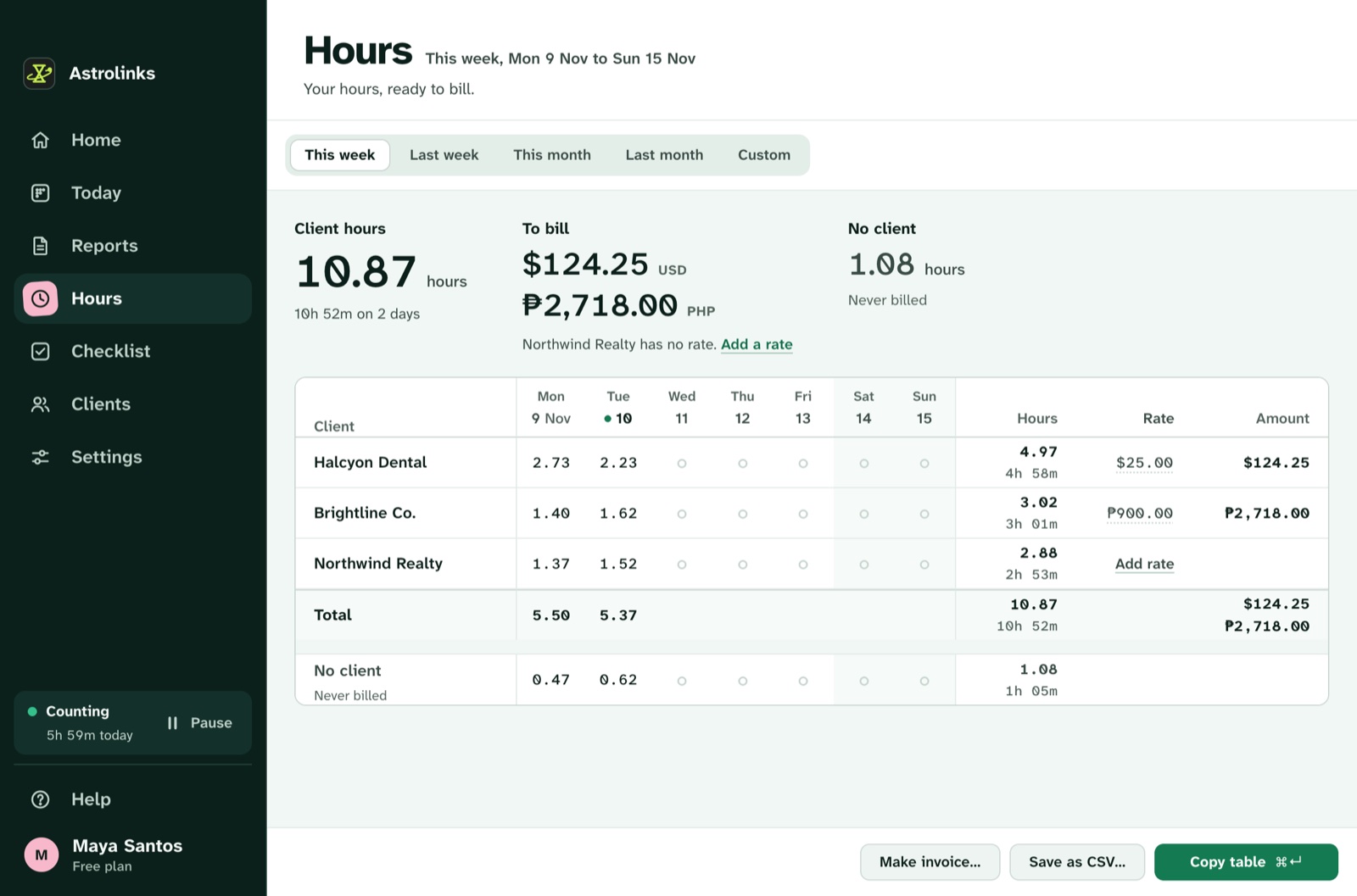
The free plan counts up to 4 hours a day for 2 clients, and every new copy starts with 7 days of Pro, no card. Download Astrolinks, or see the hours and invoices page.